How can I access images from a USB drive? (for Windows)
Please follow the steps below to view the images:
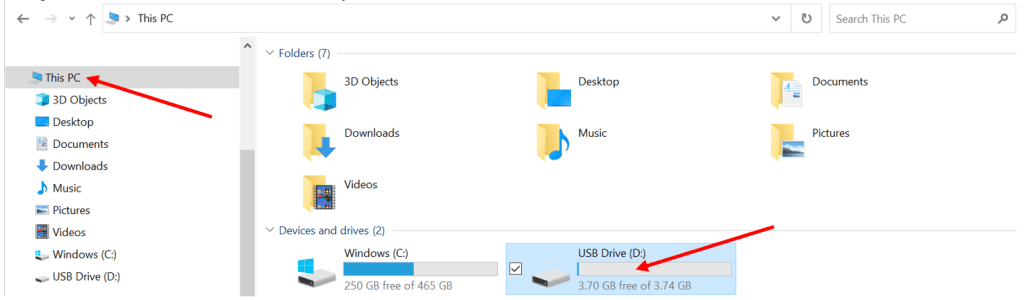
Step 1: Insert USB, from “File Explorer”, click on “This PC”, then double click on “USB drive”.
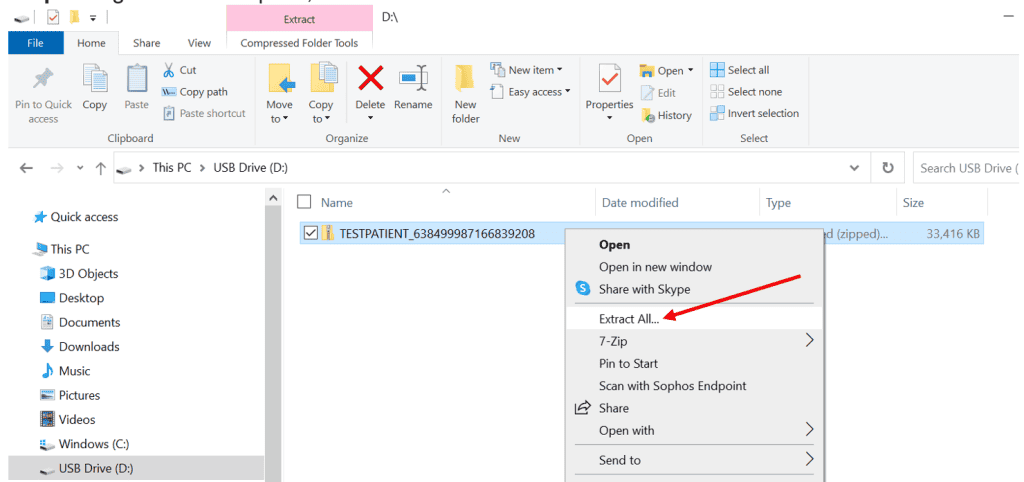
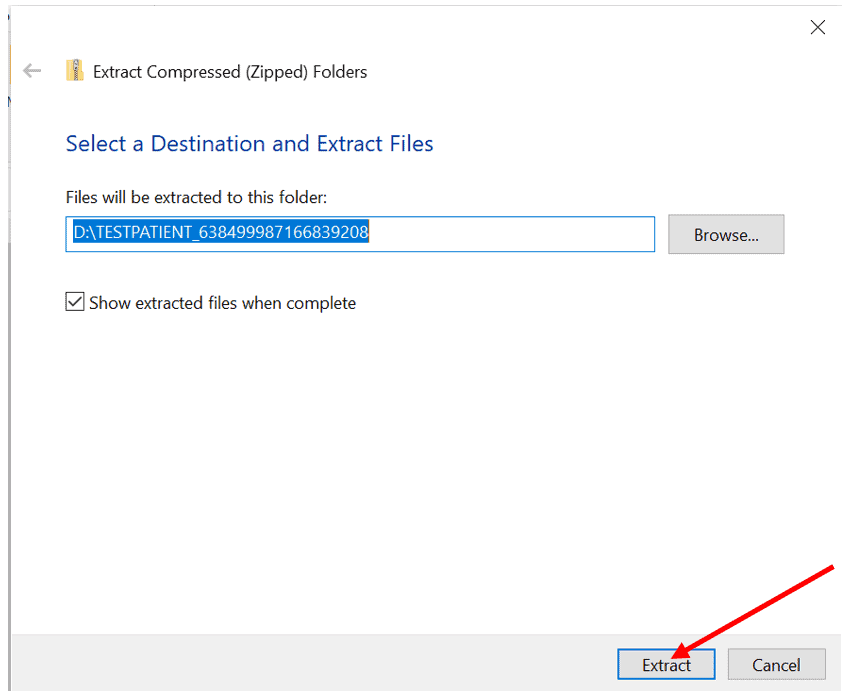
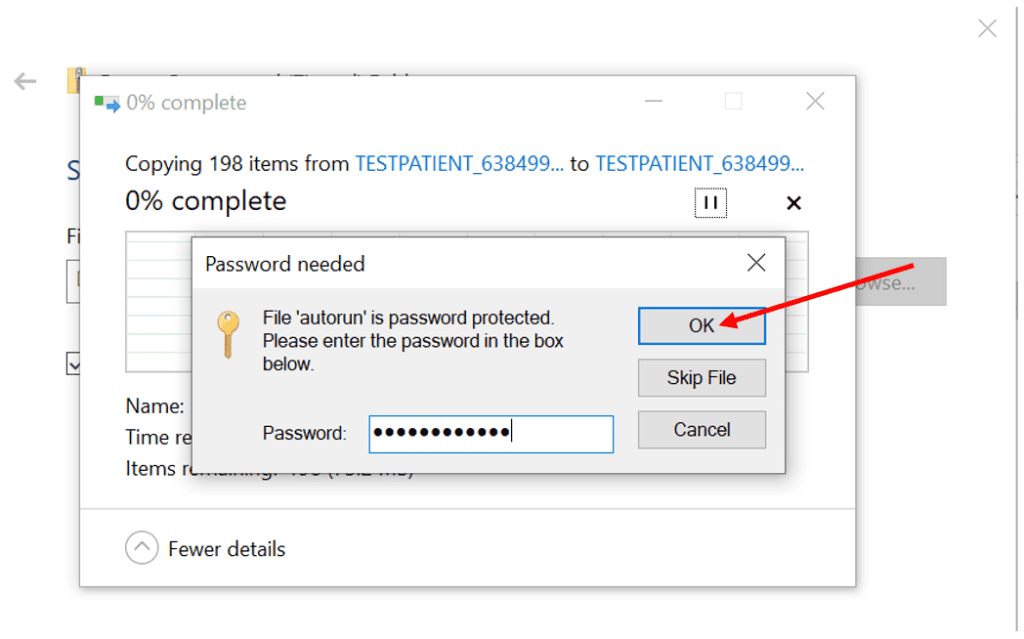
Step 2: Right click the Zip file, select “Extract All” then click “Extract”.
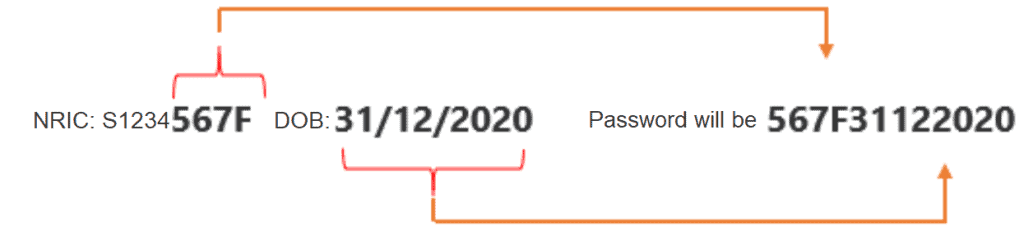
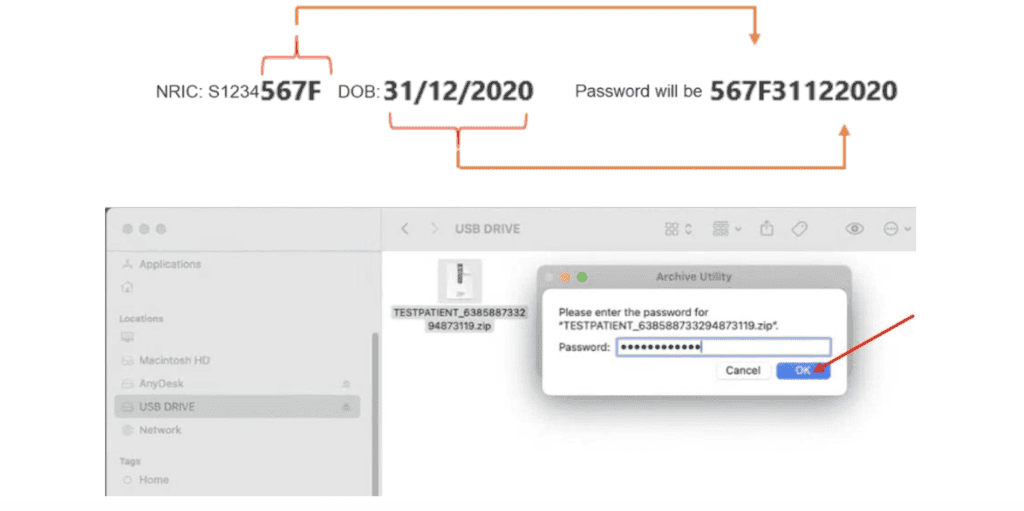
Step 3: The password will be the last 4 digits/characters of your ID no. + DOB in DDMMYYYY.
(Eg: 567F31122020).
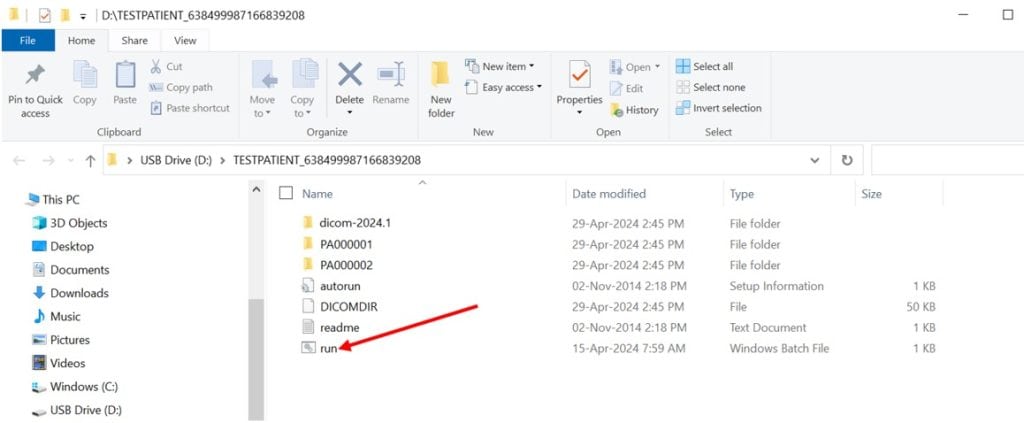
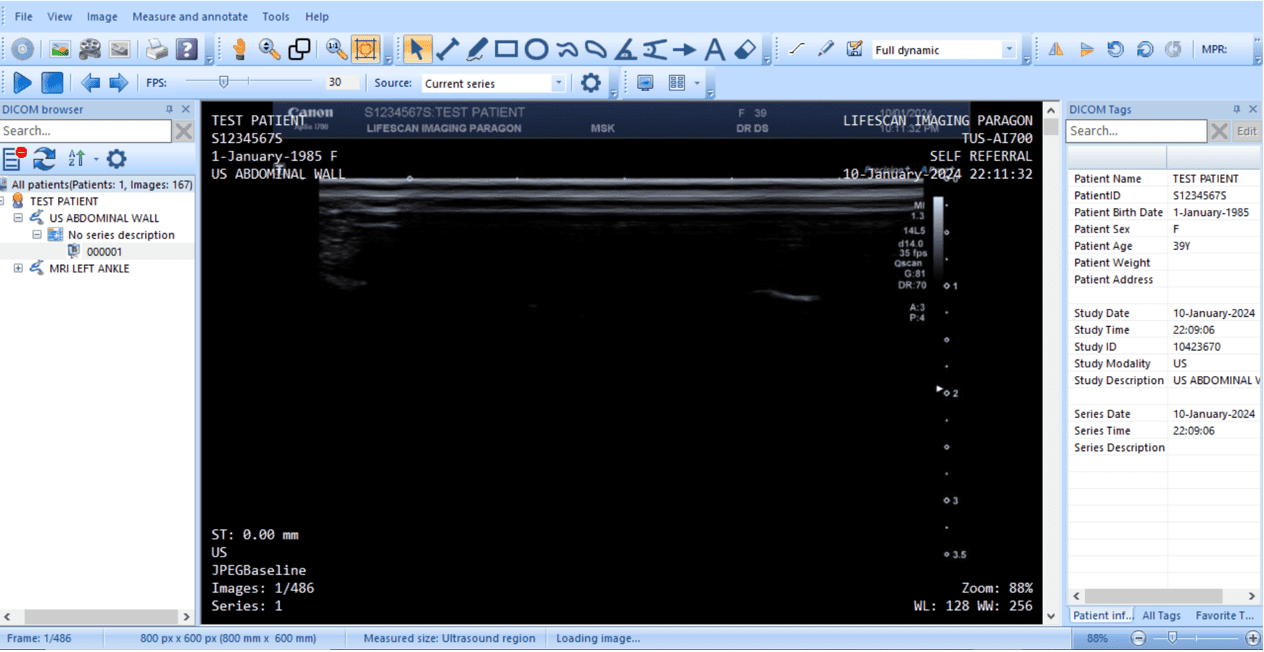
Step 4: Double click “Run” file to launch the DICOM Viewer.
How can I access images from a USB drive? (for Mac)
Please follow the steps below to view the images:
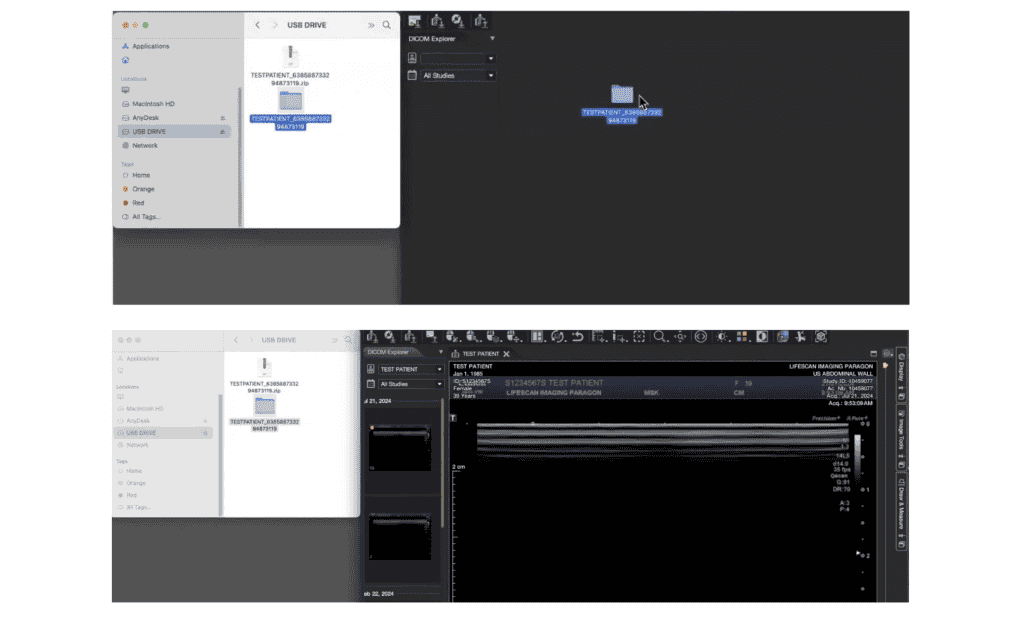
Step 1: Insert USB, go to “Finder” icon and double click on “USB drive”.
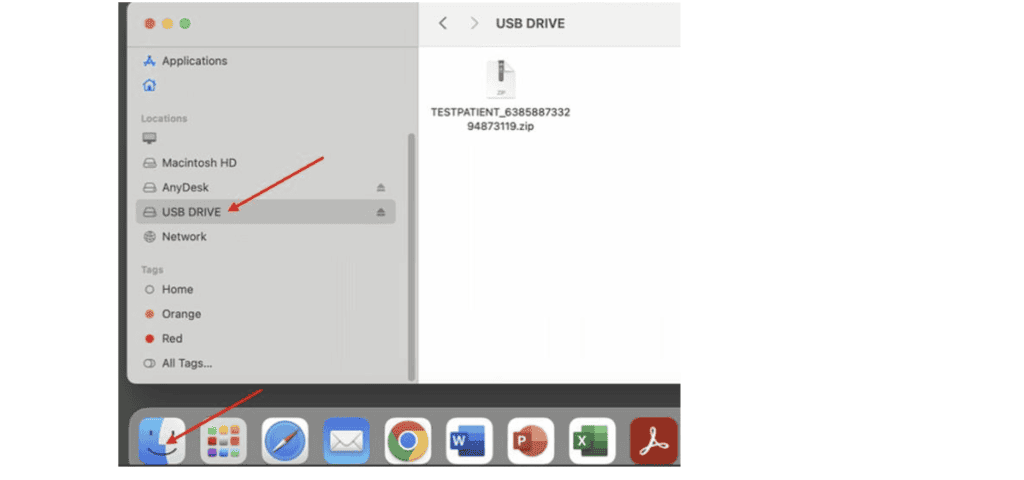
Step 2: Double click the Zip file. The password will be the last 4 digits/characters of your ID no. + DOB in DDMMYYYY. (Eg: 567F31122020).
Step 3: Launch your DICOM viewer on your Mac device.

Step 4: Drag the whole patient’s folder in USB Drive to the DICOM viewer.